Git & Github Terminologies
Git Terminologies:
-
Repository (Repo) :
- Repository is the location where your project's files, including version history, are stored.
- Example: A folder managed by Git that contains project files and a hidden .git folder for version control. You can have repositories locally on your computer or remotely on platforms like GitHub, GitLab, or Bitbucket.
- Click Here to read a detailed explanation of repositories.
-
Commit :
- Commit means saving the changes or taking a snapshot of changes made to files in the repository, with a unique identifier (hash).
-
Example : If you update a file and run
git commit -m "Commit Message", Git records the changes. - Click Here to read a detailed explanation of commit command.
-
Branch :
- A branch is a separate version (or copy) of your project where you can make changes without affecting the main version. It allows you to work on new features or fixes safely and merge them later.
- Example: If you're adding a new feature, you can create a branch, work on it, and later merge it into the main project.
-
Main (or Master) Branch :
- Main (or Master) Branch is the primary branch of a repository where the final and stable code is stored.
- Example: When a project is complete and ready to use, its final version is saved in the main branch. Developers create new branches to make changes and then merge them into the main branch once they are tested and stable.
-
Merge :
- Merge is the process of combining changes from one branch into another. This is commonly used to integrate updates from feature branches back into the main branch or any other working branch.
-
Example:
-
Suppose you are working on a blog website, and you want to add a dark mode feature.
- You create a new branch to develop the dark mode feature without affecting the main website.
- After completing the feature and testing it, you merge it into the main branch so that everyone can use dark mode.
- Once merged, the website now has both light mode and dark mode available for users.
-
Suppose you are working on a blog website, and you want to add a dark mode feature.
-
HEAD :
- HEAD is a pointer that always refers to the latest commit in the current branch. It helps Git track the most recent version of your project in that branch.
-
Example:
-
Imagine you are working on a recipe website and have made several updates.
- After making some changes to the homepage layout, you commit them. Now, HEAD points to this latest commit.
- If you make another update (like adding a new recipe) and commit it, HEAD moves to this new commit.
- If needed, you can also move HEAD to a previous commit to check or revert changes.
-
Imagine you are working on a recipe website and have made several updates.
💡
Job Oriented Courses

Core Java Development (6 Projects + Interview Preparation)
₹2,499
₹6,999

DSA using Java (LeetCode + Problem Solving)
₹3,999
₹8,999

Advance Java (JDBC, Servlet, JSP & 1 Project)
₹2,999
₹7,999

Spring Framework (Including Advance Java)
₹2,999
₹7,999

Spring Boot Framework (with 1 project)
₹3,999
₹8,999
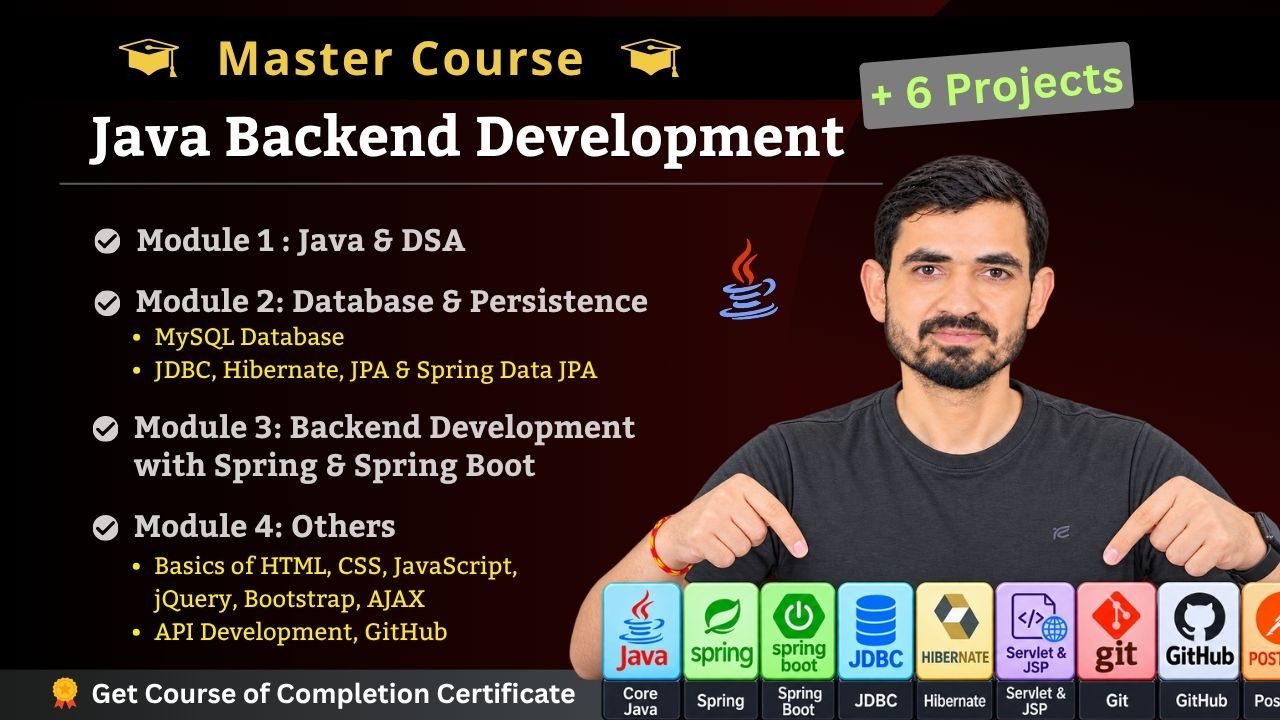
Java Backend Development (With 6 Projects)
₹6,999
₹15,999

Java Full Stack Development (with 7 Projects)
₹7,999
₹17,999
Core Java Development (6 Projects + Interview Preparation)
₹2,499
₹6,999
DSA using Java (LeetCode + Problem Solving)
₹3,999
₹8,999
Advance Java (JDBC, Servlet, JSP & 1 Project)
₹2,999
₹7,999
Spring Framework (Including Advance Java)
₹2,999
₹7,999
Spring Boot Framework (with 1 project)
₹3,999
₹8,999
Java Backend Development (With 6 Projects)
₹6,999
₹15,999
Java Full Stack Development (with 7 Projects)
₹7,999
₹17,999
Help Us Get Better Every Day
Your feedback helps us grow! If there's anything we can fix or improve, please let us know.
We’re here to make our tutorials better based on your thoughts and suggestions.
Advertisements